1. Subscription Key
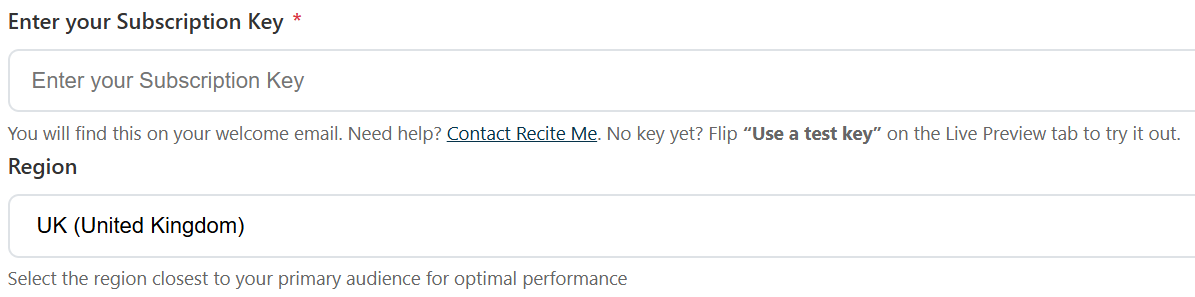
Add your subscription key and website location. Your subscription key will be provided by your Customer Success Manager, if you have not received this please reach out directly to them.
2. Create your Launch Button
Choose from the following 6 options for your button type:
Option 1 – Floating Button
Description:
A floating button that launches the Toolbar. You choose the location of the button on the Advance options tab.
Option 2 – Inline Desktop
Description:
An inline, in-page button that launches the Toolbar. For example, adding within your header or main menu.
Option 3 – Toolbar & Language
Description:
Two buttons, one launches the Toolbar (named Accessibility Tools below), the other button (in the example named Translations) launches the Toolbar with language feature open.
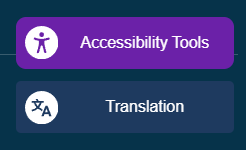
Option 4 – Toolbar & Language Dropdown
Buttons: 2
Description:
Toolbar plus a dropdown list of languages.
Assisted Setup: Yes, this is a paid for extra feature. Speak to your Customer Success Manager for more information.
Option 5 – Toolbar & Language Toggle
Buttons: 2
Description:
Toolbar plus a one-click language toggle.
Assisted Setup: Yes, this is a paid for extra feature. Speak to your Customer Success Manager for more information.
Option 6 – Toolbar & Sign Language
Buttons: 2
Description:
Two buttons — one launches the Toolbar, one launches it with sign language open.
Assisted Setup: Yes, this is a paid for extra feature. Speak to your Customer Success Manager for more information.
To customise your button, click the Advanced Options tab.
3. Toolbar Button Options:
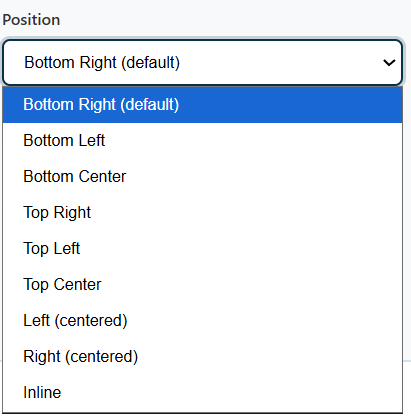
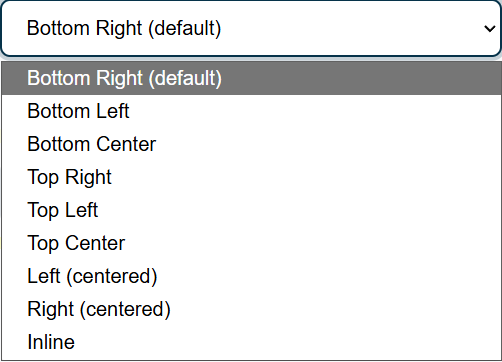
Position:
Description:
Choose where the floating toolbar button appears on the website. Positioning it in a consistent and visible location makes it easier for users to find and access accessibility features.
Default: Bottom Right
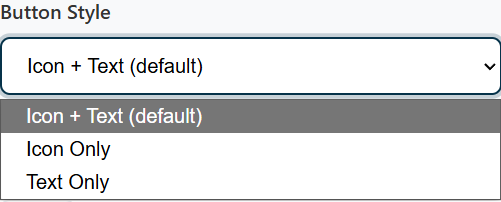
Button Style
Description:
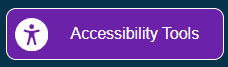
Select how the toolbar button is displayed. You can choose to show an icon, text, or both, depending on your website's design and user preferences.
Default: Icon + Text
Button Text
Description:
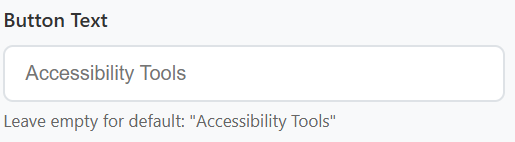
Customise the label displayed on the toolbar button. Use clear, descriptive wording so users understand what the button does. Leaving this field blank will use the default text.
Default: Accessibility Tools
Background Colour
Description:
Set the background colour of the toolbar button. This can be customised to match your brand while maintaining sufficient contrast against the page background.
Default: #6B21A8 (Purple)
Text & Icon Colour
Description:
Choose the colour of the button text and icon. The selected colour should provide good contrast against the button's background to ensure readability. The Toolbar Configuration tool automatically checks and displays the colour contrast ratio.
Default: #FFFFFF (White)
Example: Good contrast (8.72:1) ✅
Corner Style
Description:
Choose the shape of the button's corners. This allows you to match the button's appearance to the style of your website, whether you prefer sharp, slightly rounded, or fully rounded corners.
Default: Rounded (12px)
These settings allow you to customise the appearance and placement of the Toolbar button while ensuring it remains visible, recognisable, and accessible to all users.
4.Live Preview & Code
The Live Preview & Code tab is the final step in configuring your Toolbar Launcher. Here you can preview how your chosen button will appear, test it before publishing, and generate the code required to add it to your website.
Render the Preview as if on Mobile
Description:
This option forces the live preview to display the mobile version of your launcher, regardless of the size of your current browser window. It allows you to check how the button will appear on smaller screens without needing to resize your browser or use developer tools.
This is particularly useful for ensuring the launcher remains easy to locate and interact with on mobile devices, where screen space is more limited.
Default: No
Use a Test Key for this Preview
Description:
Enabling this option generates a temporary test key, allowing you to preview the launcher without affecting your live website configuration.
Because the preview uses a temporary key, some features may not load exactly as they would in production. Once you're happy with your configuration, you'll generate your permanent code below.
This option is primarily intended for testing and troubleshooting during setup.
Default: No
Information Messages
Description:
The information banner provides feedback about your launcher configuration and connection status.
For example, if the launcher cannot load using your current key, you'll be prompted to check that:
- Your client key is correct.
- Your region has been configured correctly.
- Your Toolbar has been enabled.
These messages help identify configuration issues before the launcher is added to your website.
Live Preview
Description:
The Live Preview displays your configured launcher exactly as it will appear to your website visitors.
Use this area to confirm:
- The button is positioned correctly.
- The colours and styling look as expected.
- The button text is correct.
- The overall appearance matches your website branding.
This provides a final opportunity to review your configuration before copying the installation code.
Copy This Code
Description:
Once you're happy with your configuration, this section generates the installation code for your launcher.
The generated <script> should be copied exactly as shown and added to your website, typically just before the closing </body> tag. This code loads the launcher using the settings you've selected throughout the configuration process.
If you make changes to your launcher later, simply generate and replace the existing code with the updated version.
Copy to Clipboard
Description:
Copies the generated installation code directly to your clipboard, making it easy to paste into your website or send to your development team.
Using this button helps avoid accidental formatting changes that can occur when manually selecting the code.
Copy Shareable Link
Description:
Generates a shareable link to your current launcher configuration.
This is useful when collaborating with colleagues or developers, allowing them to review the configuration without needing access to your account or recreating the settings manually.
Reset All Options
Description:
Restores all launcher settings back to their default values.
This is useful if you'd like to start your configuration again from scratch or remove any changes you've made during testing.
Use this carefully, as any unsaved customisations will be lost.
View on Your Site
The View on Your Site section allows you to test your configured launcher on your own website before installing the production code.
Rather than editing your website, this uses a temporary browser bookmark (bookmarklet) that injects the launcher into any page you visit. This provides a safe way to check positioning, appearance, and behaviour in your live environment.
The process involves:
- Dragging the Recite Launcher Test button to your browser's bookmarks bar.
- Opening the page on your website where you'd like to preview the launcher.
- Clicking the bookmark.
- The configured launcher will appear on the page exactly as a visitor would see it.
This allows you to validate your configuration without making any permanent changes to your website.
Bookmark Errors
Description:
If the bookmarklet fails to launch, the page may display an error explaining why it couldn't load.
A common cause is a website's Content Security Policy (CSP) preventing the launcher from loading external resources.
If this occurs, your website administrator may need to update the site's CSP to allow the required Recite Me domains before the preview can function correctly.
Want Something More?
Description:
If your organisation requires a more tailored experience, this section provides access to your Customer Success Manager.
They can help with advanced launcher customisation, bespoke styling, multilingual configurations, implementation guidance, and other organisation-specific requirements that go beyond the standard launcher options.