---
title: Drupal v11 Implementation
description: The following guide will support you with installing the Recite Me toolbar onto your Drupal website version 10.4 and below, via a dedicated plugin.
---
[Skip to content](https://knowledge.reciteme.com/knowledge/drupal-v11#main-content)
English
Show submenu for translations
![recite-logo-large\_trans.png\]](https://knowledge.reciteme.com/hs-fs/hubfs/recite-logo-large_trans.png?height=40&name=recite-logo-large_trans.png)
Open main navigation
Close main navigation
- English
Show submenu for translations
- Go to reciteme.com
Go to reciteme.com
Hello. How can we help you?
- There are no suggestions because the search field is empty.
1. [Help Centre](https://knowledge.reciteme.com/knowledge?hsLang=en)
2. [Toolbar Implementation Guides](https://knowledge.reciteme.com/knowledge/toolbar-implementation-guides?hsLang=en)
April 28, 2026
# Drupal v11 Implementation
## The following guide will support you with installing the Recite Me toolbar onto your Drupal website version 10.4 and above, via a dedicated plugin.
**Lets Get Started.**
1\. Please **download** the Drupal Plugin file below and attached the file:
** [DOWNLOAD DRUPAL PLUGIN](https://knowledge.reciteme.com/hubfs/reciteme-toolbar-drupal%20(1).zip?hsLang=en)**
2\. Once downloaded, please **extract** the plugin to the Drupal's *web/modules/contrib* directory.
3\. Within your Drupal Manager, please select **Manage** across the top menu and then select **Extend** from themenu below**. **
****
4\.Next, please visit the section under the menu header **Extend** and find the **Recite Me Accessibility plugin**, you can find this under the **Accessibility section**. Once found, please select the box on the left hand side.
**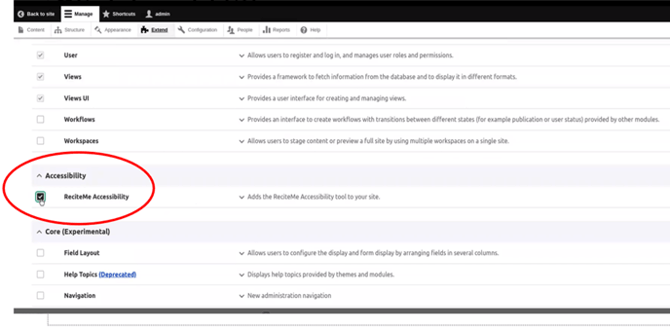**
5.Once selected, please scroll down to the bottom of the page and select **Install.**
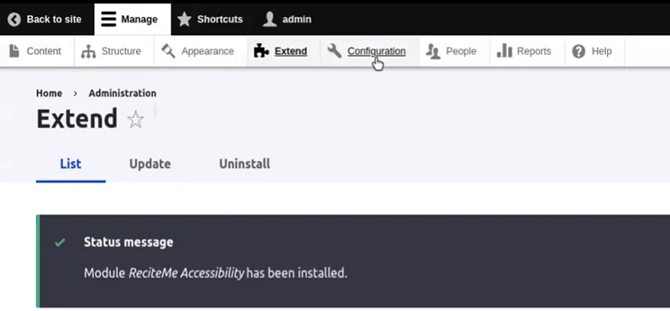
This should show a status message of **Module Recite Me Accessibility** has been enabled.
#### ****
#### **1. Configuring the Recite Me Plug In. **
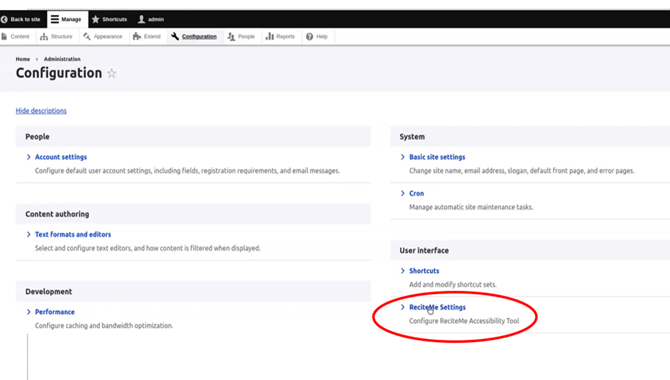
**a)** Please visit the **Configuration** menusection. Here you will see, under the **User Interface** section, **Recite Me Settings** which you need to select.
**b) Recite Me Client key:** You will then need to add your **unique key**, and you can also select your launching choices from this menu.
Your Key will be provided by the Onboarding Team. Please add it to the box labelled **Recite Client Key**, be careful that you don’t add any spaces at the start or the end of the key.
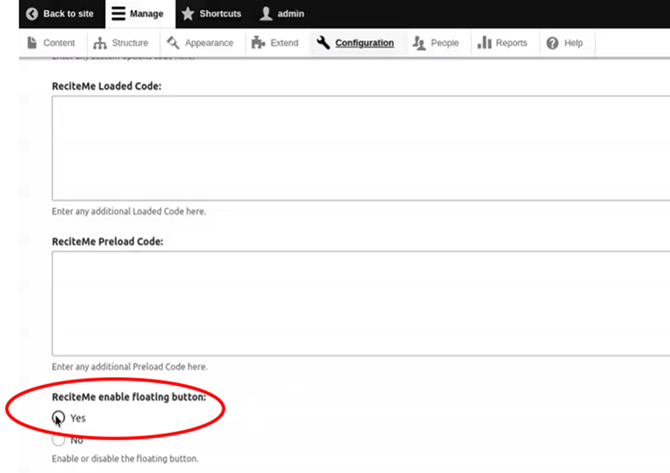
**c) Enable Floating Button:** Please select **Yes** and select 'Save Configuration'
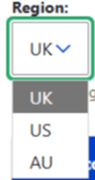
**d) Choose Region:** You have an option of UK, USA, or AUSTRALIA
#### 
**e) Save Configurations **

#### This should show a status message of **The configuration options have been saved** once complete**.**
#### 2. Structure
**a)** Across the top menu, please head to **Manage,** then **Structure**. Here you need to select **Block Layout.**
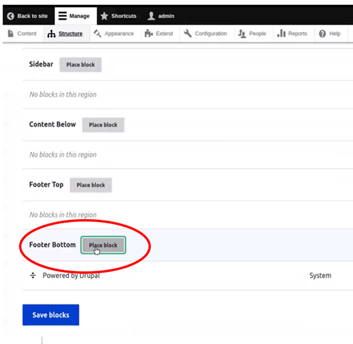
**b)** Here you need to scroll to the **Footer Bottom **and select **Place Block**
****
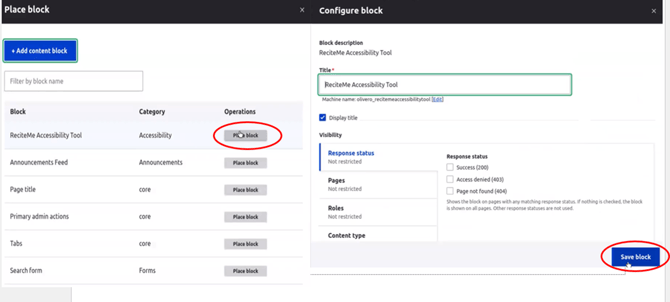
**c)** Next, please select **Place Block, **then you should get a Configure Block pop up, where the title states **ReciteMe Accessibility Tool**. Please select **Save Block.**
****
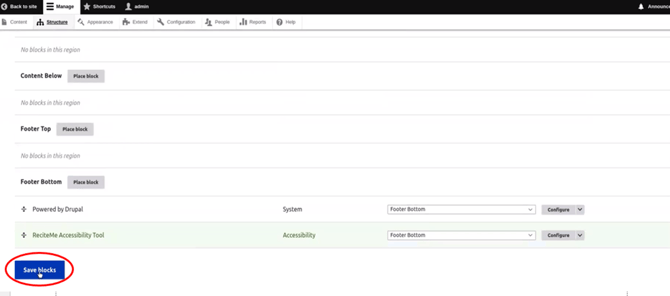
**d)** You should now be back within the **Structure** section. Please scroll down to the bottom where your **Footer Bottom** list is. Here you should see **ReciteMe Accessibility Tool**, ready to be saved. Please select **Save Block.**
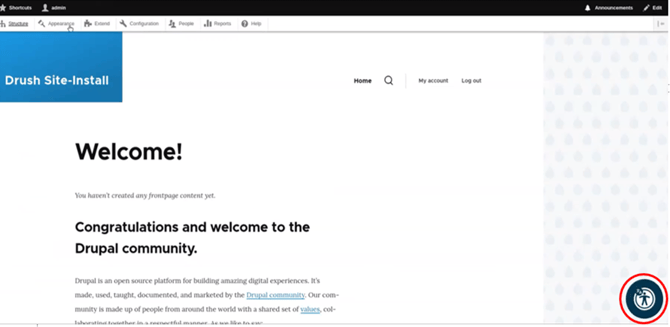
**e)** Finally, please visit your site and make you should have a floating button on the bottom right hand side of your screen which when selected, activates your ReciteMe Accessibility toolbar. Thanks!
If you have any questions, please reach out to customersupport@reciteme.com.
- [Toolbar Knowledge Base](https://knowledge.reciteme.com/knowledge/toolbar-knowledge-base?hsLang=en#main-content)
- [Product Updates](https://knowledge.reciteme.com/knowledge/toolbar-knowledge-base?hsLang=en#product-updates)
- [Toolbar Overview](https://knowledge.reciteme.com/knowledge/toolbar-knowledge-base?hsLang=en#toolbar-overview)
- [Documentation](https://knowledge.reciteme.com/knowledge/toolbar-knowledge-base?hsLang=en#documentation)
- [Launch Buttons](https://knowledge.reciteme.com/knowledge/toolbar-knowledge-base?hsLang=en#launch-buttons)
- [Toolbar Implementation Guides](https://knowledge.reciteme.com/knowledge/toolbar-implementation-guides?hsLang=en#main-content)
- [Step 1](https://knowledge.reciteme.com/knowledge/toolbar-implementation-guides?hsLang=en#step-1)
- [Checker Knowledge Base](https://knowledge.reciteme.com/knowledge/checker-knowledge-base?hsLang=en#main-content)
- [Accessing Your Account](https://knowledge.reciteme.com/knowledge/checker-knowledge-base?hsLang=en#accessing-your-account)
- [My Domains](https://knowledge.reciteme.com/knowledge/checker-knowledge-base?hsLang=en#my-domains)
- [Understanding Your Results](https://knowledge.reciteme.com/knowledge/checker-knowledge-base?hsLang=en#understanding-your-results)
- [Integration Settings](https://knowledge.reciteme.com/knowledge/checker-knowledge-base?hsLang=en#integration-settings)
- [Create a Report](https://knowledge.reciteme.com/knowledge/checker-knowledge-base?hsLang=en#create-a-report)
- [Chrome Extension](https://knowledge.reciteme.com/knowledge/checker-knowledge-base?hsLang=en#chrome-extension)
- [Crawler - Domain Digital Landscape Detection](https://knowledge.reciteme.com/knowledge/checker-knowledge-base?hsLang=en#crawler-domain-digital-landscape-detection)
- [Product Updates](https://knowledge.reciteme.com/knowledge/checker-knowledge-base?hsLang=en#product-updates)
- [Accessibility Statement Templates](https://knowledge.reciteme.com/knowledge/checker-knowledge-base?hsLang=en#accessibility-statement-templates)
- [Troubleshooting](https://knowledge.reciteme.com/knowledge/checker-knowledge-base?hsLang=en#troubleshooting)
- [PDF Remediator Knowledge Base](https://knowledge.reciteme.com/knowledge/pdf-remediator-knowledge-base?hsLang=en#main-content)
- [PDF Remediator Overview](https://knowledge.reciteme.com/knowledge/pdf-remediator-knowledge-base?hsLang=en#pdf-remediator-overview)
- [Troubleshooting](https://knowledge.reciteme.com/knowledge/pdf-remediator-knowledge-base?hsLang=en#troubleshooting)
- [Security, Continuity and Data Protection](https://knowledge.reciteme.com/knowledge/security-continuity-and-data-protection?hsLang=en#main-content)
- [Certification](https://knowledge.reciteme.com/knowledge/security-continuity-and-data-protection?hsLang=en#certification)
- [Assessments and Security Grades](https://knowledge.reciteme.com/knowledge/security-continuity-and-data-protection?hsLang=en#assessments-and-security-grades)
- [Information Security](https://knowledge.reciteme.com/knowledge/security-continuity-and-data-protection?hsLang=en#information-security)
- [Data Protection](https://knowledge.reciteme.com/knowledge/security-continuity-and-data-protection?hsLang=en#data-protection)
- [Terms Of Service](https://knowledge.reciteme.com/knowledge/terms-of-service?hsLang=en#main-content)
- [Terms](https://knowledge.reciteme.com/knowledge/terms-of-service?hsLang=en#terms)
- [Description of Services](https://knowledge.reciteme.com/knowledge/terms-of-service?hsLang=en#description-of-services)
- [Finance](https://knowledge.reciteme.com/knowledge/finance?hsLang=en)
- [Marketing Resources (UK)](https://knowledge.reciteme.com/knowledge/marketing-resources-uk?hsLang=en#main-content)
- [Getting Started](https://knowledge.reciteme.com/knowledge/marketing-resources-uk?hsLang=en#getting-started)
- [Website Content](https://knowledge.reciteme.com/knowledge/marketing-resources-uk?hsLang=en#website-content)
- [Brand](https://knowledge.reciteme.com/knowledge/marketing-resources-uk?hsLang=en#brand)
- [Internal Comms](https://knowledge.reciteme.com/knowledge/marketing-resources-uk?hsLang=en#internal-comms)
- [External Comms](https://knowledge.reciteme.com/knowledge/marketing-resources-uk?hsLang=en#external-comms)
- [Customer Examples](https://knowledge.reciteme.com/knowledge/marketing-resources-uk?hsLang=en#customer-examples)
- [Advance Your Accessibility Efforts](https://knowledge.reciteme.com/knowledge/marketing-resources-uk?hsLang=en#advance-your-accessibility-efforts)
- [Get Featured on the Recite Me Website](https://knowledge.reciteme.com/knowledge/marketing-resources-uk?hsLang=en#get-featured-on-the-recite-me-website)
- [Marketing Resources (USA)](https://knowledge.reciteme.com/knowledge/marketing-resources-usa?hsLang=en#main-content)
- [Getting Started](https://knowledge.reciteme.com/knowledge/marketing-resources-usa?hsLang=en#getting-started)
- [Website Content](https://knowledge.reciteme.com/knowledge/marketing-resources-usa?hsLang=en#website-content)
- [Recite Me Brand](https://knowledge.reciteme.com/knowledge/marketing-resources-usa?hsLang=en#recite-me-brand)
- [Internal Comms](https://knowledge.reciteme.com/knowledge/marketing-resources-usa?hsLang=en#internal-comms)
- [External Comms](https://knowledge.reciteme.com/knowledge/marketing-resources-usa?hsLang=en#external-comms)
- [Client Examples](https://knowledge.reciteme.com/knowledge/marketing-resources-usa?hsLang=en#client-examples)
- [Advance Your Accessibility Efforts](https://knowledge.reciteme.com/knowledge/marketing-resources-usa?hsLang=en#advance-your-accessibility-efforts)
- [Get Featured on the Recite Me Website](https://knowledge.reciteme.com/knowledge/marketing-resources-usa?hsLang=en#get-featured-on-the-recite-me-website)
- [Marketing Resources (ANZ)](https://knowledge.reciteme.com/knowledge/marketing-resources-anz?hsLang=en#main-content)
- [Website Content](https://knowledge.reciteme.com/knowledge/marketing-resources-anz?hsLang=en#website-content)
- [Brand](https://knowledge.reciteme.com/knowledge/marketing-resources-anz?hsLang=en#brand)
- [Internal Comms](https://knowledge.reciteme.com/knowledge/marketing-resources-anz?hsLang=en#internal-comms)
- [External Comms](https://knowledge.reciteme.com/knowledge/marketing-resources-anz?hsLang=en#external-comms)
- [Get Featured on the Recite Me Website](https://knowledge.reciteme.com/knowledge/marketing-resources-anz?hsLang=en#get-featured-on-the-recite-me-website)
- [EAA](https://knowledge.reciteme.com/knowledge/eaa?hsLang=en)
- [Global Accessibility Awareness Day 2026](https://knowledge.reciteme.com/knowledge/global-accessibility-awareness-day-2026?hsLang=en#main-content)
- [Global Accessibility Awareness Day 2026](https://knowledge.reciteme.com/knowledge/global-accessibility-awareness-day-2026?hsLang=en#global-accessibility-awareness-day-2026)
- [National Inclusion Week 2026](https://knowledge.reciteme.com/knowledge/national-inclusion-week-2026?hsLang=en)
[](http://reciteme.com)
Recite Me Help Centre
Copyright © 2026, Recite Me