![recite-logo-large_trans.png]](https://knowledge.reciteme.com/hs-fs/hubfs/recite-logo-large_trans.png?height=40&name=recite-logo-large_trans.png)
Why the placement of your Toolbar launch button matters?
When investing in the Recite Me Toolbar for your website, it is easy to focus on features, compliance, and functionality.
However, one critical detail which is sometimes overlooked is the placement and design of the launch buttons itself.
This small visual element plays a significant role in whether users can find and benefit from the support you have provided for them.
Being unable to locate and launch the Toolbar could significantly impact your product engagement.
But don't worry we are here to support you.
Following these simple recommendations, you can help ensure your users find the right support while also boosting overall engagement.
Visibility Drives Value
An accessibility tool only delivers value if users can easily locate it.
For many web visitors particularly those with visual, cognitive, or motor impairments searching for a hidden button or link, can be very frustrating or sometimes impossible.
Clear, consistent placement ensures that users can quickly access the features designed to support them, reinforcing your commitment to them from the outset.
Think of the Toolbar launch button as a help point for a visitor to your office.
If it is clearly signposted and easy to reach, people can quickly get the assistance they need, but if it is hidden or poorly marked up, many visitors will struggle on without the support that is there to support them.
Best Practice for Placement
Positioning your Toolbar launch button in a predictable and unobstructed area is key:
- Header Section or Bottom corners are ideal: The header and lower right or lower left corner of the screen is widely recognised as a standard location. Users have come to expect support tools in these areas.
- Avoid overlap with other UI elements: Ensure the icon does not compete with chat widgets, cookie banners, navigation menus or moving background images.
- Maintain consistency across pages: The icon should appear in the same place on every page, so users do not have to relearn where to find it.
- Consider mobile responsiveness: Make sure the icon remains accessible and does not interfere with core navigation on smaller screens.
Colour and Contrast Considerations
The icon must stand out without clashing with your brand:
- High contrast is essential: Ensure the icon clearly contrasts against the background so it is visible to users with low vision or colour blindness.
- Avoid relying on colour alone: Pair colour with a recognisable symbol (such as a universal accessibility icon) to improve clarity.
- Stay on brand, but prioritise usability: While brand alignment is important, accessibility should take precedence over aesthetic subtlety.
- Test across themes: If your site includes light/dark modes, confirm the icon remains visible in both.
Accessibility of the Icon Itself
- Keyboard navigability: Users should be able to reach and activate the icon using keyboard controls.
- Use semantic native button element, <button>
- Screen reader support: Include a clear, descriptive aria label (e.g. “Open accessibility settings”) so assistive technologies can interpret it correctly.
Adequate size and spacing: The icon should be large enough to click or tap easily, especially for users with motor impairments. - Focus indicators: Ensure visible focus states for users navigating via keyboard. Ensure the focus indicator has the correct colour contrast ratio.
- Clear wording - Avoid using words such as(Open Recite Me, Read this page, Listen to this page)
- Ensure the button is present in the tab order of the page.
- Make sure not to use images of text on the launch button, as these are not recognized by screen reader.
- Make sure the button meets 44x44 px target size.
- Make sure the launch button does not cover text on 200-400% zoom.
- Avoid animation or moving content on the button.
As the toolbar offers multiple features a user may not know what this means - We recommend using words such as:
- Accessibility Support
- Translation Support
Avoiding Common Pitfalls
- Hiding the icon within menus or behind interactions
- Using low contrast or overly subtle designs
- Allowing it to be obscured by other widgets or pop ups
- Making it inconsistent across devices or pages
- Have multiple tools which have perform the same function - we, like you are committed to accessibility, but sometimes having multiple tools which offer the same features can be confusing to a user.
Quick testing tips before Go Live
- Make sure you can tab to the button(s)
- Zoom to 200-400% to check no content is obscured by the launch button
- Check button announces with correct aria label using screen reader.
- Check the contrast of the button
Your accessibility Toolbar is an investment in inclusivity, but its impact depends on how easy it is for a user to find.
By carefully considering placement, colour, and usability of the launch icon, you ensure that users can easily find and benefit from the support you’ve made available.
We are here to help you make the right choice, we can provide you with simple customisable buttons, so you can choose the right size, colours and wording to suit you.
A small section is below:

Custom Solutions (Maybe subject to additional costs)
We appreciate every client has different requirements so we are here to help you find what works best for you.
Separate Translation Drop Down
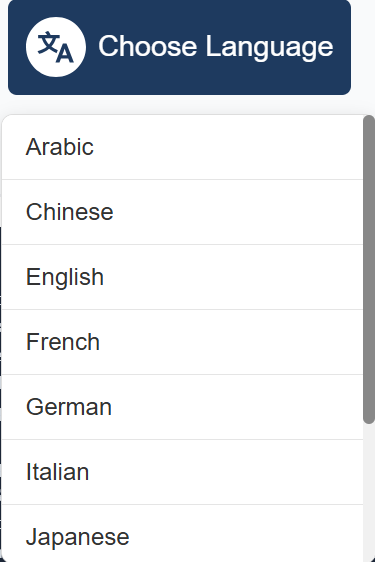
If multilingual support is a key requirement for your users, consider adding a dedicated "Choose Language" button with a translation dropdown.
This makes language support more visible, discoverable, and easier to access.
User Journey
- Dedicated "Choose Language" Button
- Display a clearly labelled Choose Language button within the page header or navigation.
- Language Selection
- When the button is selected, present the top 10 most commonly used languages in a dropdown menu.
- Users can quickly select their preferred language
- Automatic Translation & Toolbar Access
Once a language is selected:- The page content is translated into the chosen language.
- The accessibility toolbar automatically opens, providing access to additional support features.
- Additional Accessibility Features
- Within the toolbar, users can access complementary tools such as Text-to-Speech, which supports speech output in more than 60 languages.
- Show More Languages
- If the user's language is not listed in the top 10 options, they can select Show More.
- This opens the accessibility toolbar with the language dropdown expanded, allowing users to search for and select from the full list of supported languages.
Benefits
- Makes translation functionality easier to discover.
- Reduces the number of steps required to translate content.
- Improves accessibility for multilingual users.
- Increases awareness and usage of additional support tools such as Text-to-Speech.
- Creates a more intuitive and streamlined user experience.
Language Disclaimer
We understand that the content on your website is important.
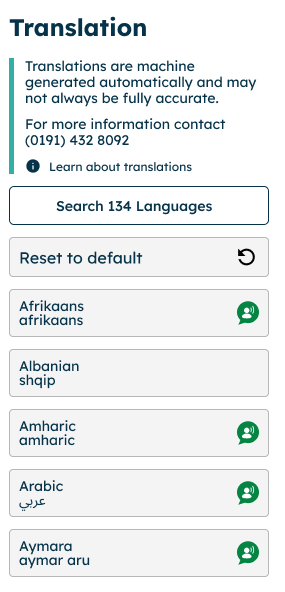
Recite Me uses high quality translation providers; however, depending on the nature of your content, you may wish to inform users that translations are machine generated.
We can add a message at the top of the translation dropdown to make this clear to users of the translation feature.
We recommend keeping this message to a maximum of 150 words, though the wording can be tailored to suit your needs.
You are also able to re-order the languages so that your most used languages appear at the top.
If you have any questions or would like some guidance on choosing the right launch button , then please contact Customer Support
Client Case Study
As part of our ongoing commitment to improving toolbar usage and ensuring users can find the support they need, we worked with one of our clients to evaluate their launch button.
During this review, we identified a key barrier: the launch button was buried within menus, making it difficult to locate and resulting in low and inconsistent usage.
In December, the client introduced a simple, highly visible launch icon directly on the site.
This change dramatically improved discoverability and ease of access and the impact was immediate.
Pre‑Change Trend (Old Menu‑Based Launch Flow)
-
September: 68 users
-
October: 86 users
-
November: 156 user
Usage showed gradual growth, but remained limited due to the hidden launch path.
Post‑Change Trend (New Launch Icon Introduced in December)
-
December: 658 users — 322% increase from November
-
January: 589 users
-
February: 670 users
-
March: 718 users — 360% above the pre‑change baseline
Overall Result: Updating the launch button, didn’t just create a spike, it established a new, significantly higher level of sustained usage, with March usage nearly 10× higher than September.
If you would like to discuss your launch button placement, then please contact your CSM or contact customer.support@reciteme.com