![recite-logo-large_trans.png]](https://knowledge.reciteme.com/hs-fs/hubfs/recite-logo-large_trans.png?height=40&name=recite-logo-large_trans.png)
We’ve found a common setup issue in some AWS environments that stops our accessibility (WCAG) compliance scanner from reaching your public website.
This happens when your AWS Web Application Firewall (WAF) and Application Load Balancer (ALB) are configured in a way that hides our scanner’s real identity — the WAF only sees traffic coming from the ALB, not from us directly. Because of that, the WAF sometimes assumes the traffic is a bot and blocks it.
To fix this, your security or IT team just needs to tell the WAF how to correctly recognize and trust our scanner.
Why This Happens
When our scanner connects to your website:
- The Application Load Balancer (ALB) accepts the connection first.
- Then the ALB makes a new connection to the WAF.
- The WAF sees the ALB’s internal IP address, not our scanner’s real one.
- Our true IP is still available inside a small piece of information called the X-Forwarded-For (XFF) header, but the WAF needs to be told to look there.
Because the WAF doesn’t recognize us, it may block or throttle our requests — even though they’re completely safe.
Whitelist by IP Address
- US checker can be found at:
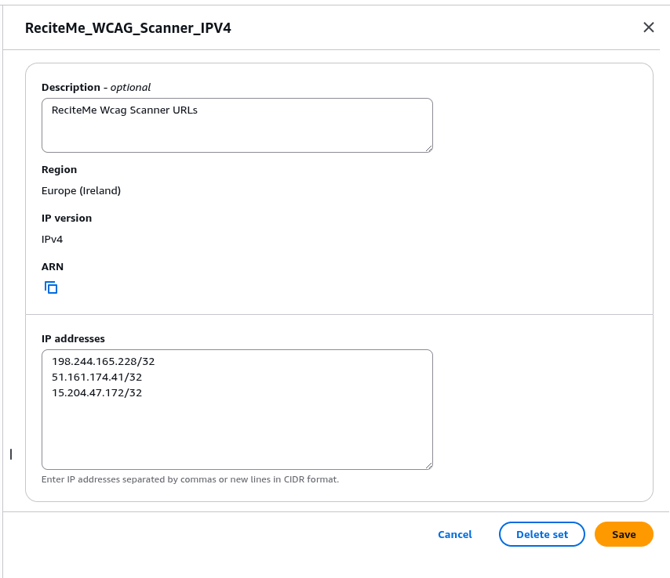
- 15.204.47.172/32
- UK checker can be found at:
- 198.244.165.228/32
- AU checker can be found at:
- 51.161.174.41/32
Your IT team adds a rule to the WAF to trust our scanner’s known IP addresses.
Steps (in AWS Console):
- Note the three IP addresses listed above.
- Head to the WAF & Shield section, you can find the link in the left column and create a new IP Set in WAF and add those IPs.
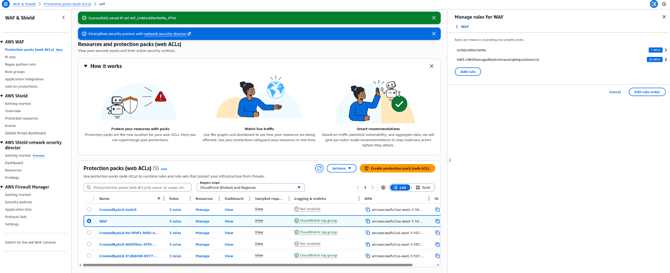
- Head over to your 'Protection packs (web ACLs)' section you can find the link in the left menu and select your protection pack.
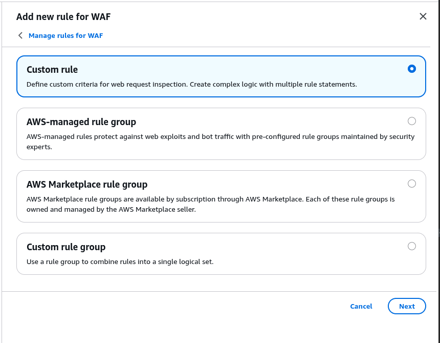
- Add a new rule, then create a custom rule from the next menu.
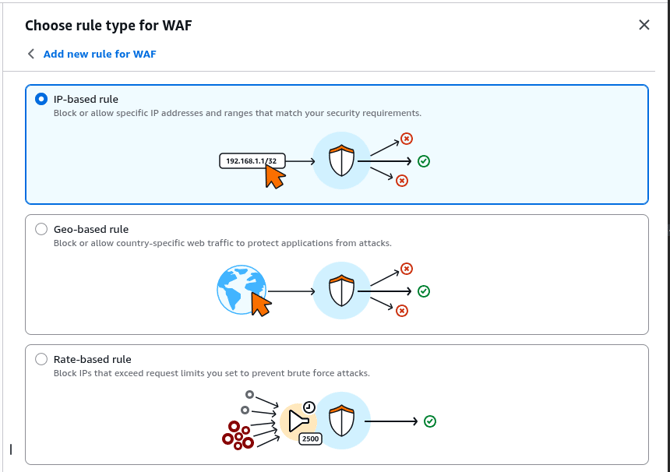
- Choose the Rule type IP-based rule
- Set the action to allow, toggle the use existing IP list and select the IP list you created earlier. Next click on ‘Rule configuration’
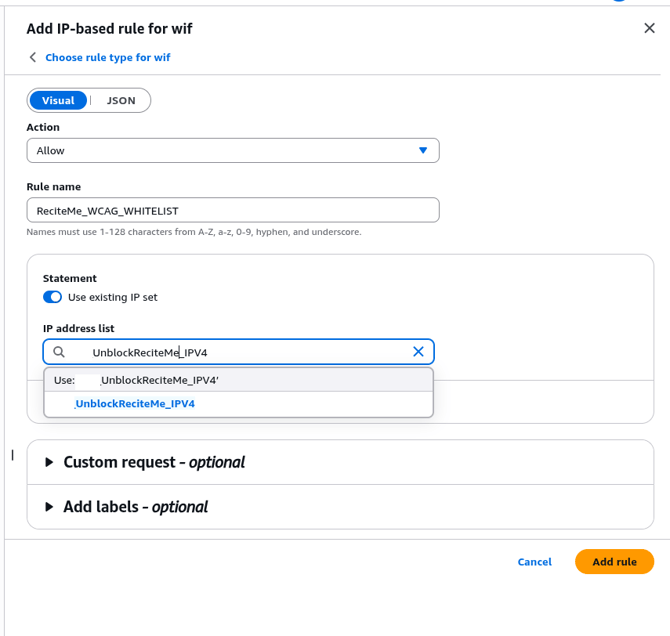
- The rule configuration should look like (toggle either ‘IP address in header’ or ‘Source IP’):
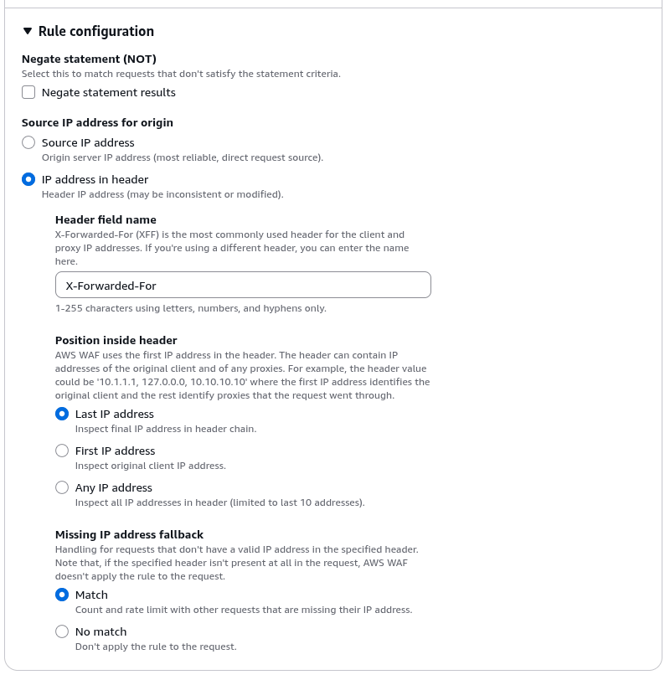
- Repeat steps 3 through 6 for Source IP
This ensures the WAF recognizes our traffic whether it comes directly or through your ALB.
Security Note
This solution is secure — it won’t expose your site to new risks. It only makes a small, controlled exception that recognizes our scanner as trusted. No other traffic is affected.