![recite-logo-large_trans.png]](https://knowledge.reciteme.com/hs-fs/hubfs/recite-logo-large_trans.png?height=40&name=recite-logo-large_trans.png)
1. Organise Your Domains into Easy to Access Groups
-
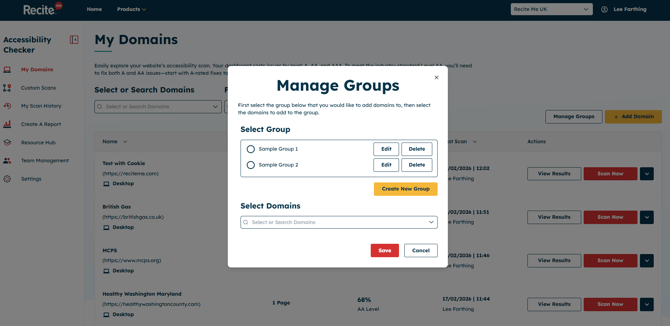
Within My Domains, Admin users will now see a new “Manage Groups” option. This allows them to create groups and associate specific domains to each group for easier organisation.
-
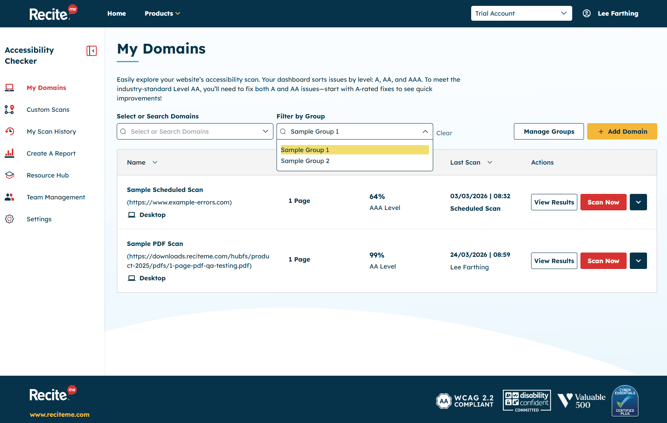
Once groups have been created, Admin, Editor, and Viewer user roles will see a “Filter by Group” option on the My Domains landing page. This makes it quick and easy to filter domains and select a specific group.
-
This feature is particularly valuable for Enterprise users managing multiple domains or scan groups, as it enables better organisation and faster access to relevant domains.
2. User Access – Restrict Users to Specific Groups
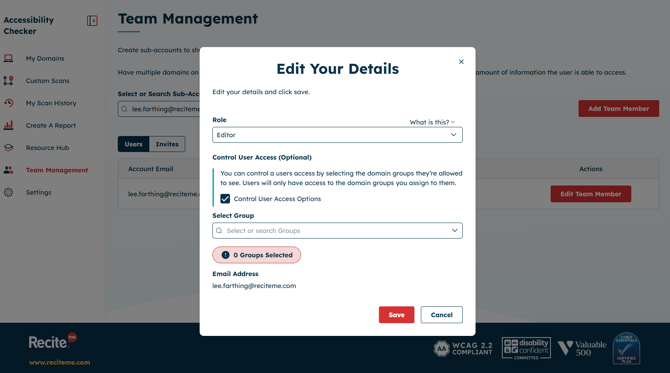
- You can now manage visibility at the user level in Team Management. In a user’s settings, select Control User Access to limit what parts of your organisation a user can see.
- For example, if your organisation has multiple Domains, you can create a Group, add the Domain scan to that Group, and restrict the user’s access to that specific Group only.
- This ensures Editor and Viewer users only see the Domains and content relevant to them.
- This setting is optional, you can give an Editor or Viewer access to all Domain scans, or enable Control User Access to limit them to specific Groups.
3. Reporting - Granular Progress Breakdown by Day
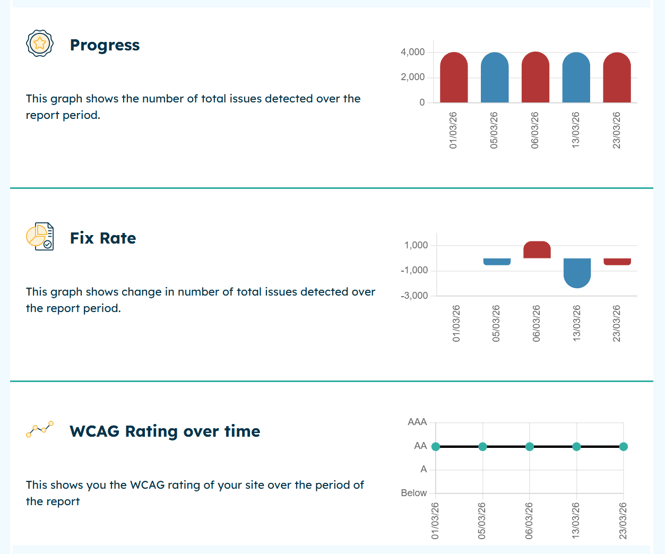
- When you generate a report within the same month, progress is now broken down by each day a successful scan took place. This gives you a more granular view across the month instead of a single summary at the end.
- This only applies to reports generated within the same month. Reports covering multiple months will continue to show a monthly summary breakdown.
- This behaviour applies to the Progress, Fix Rate, and WCAG Rating Over Time sections of the report.
4. Assign Accessibility Findings to Users
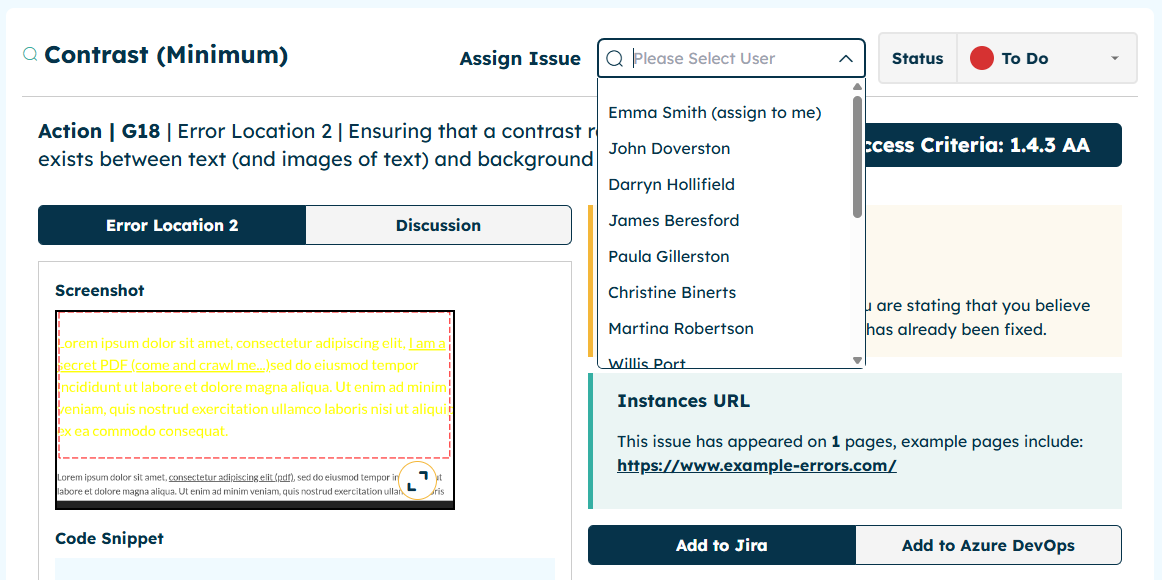
You can now assign an accessibility finding directly to a user. Within the Issue Details page, the Assign Issue dropdown displays all team members in your organisation. When no user is assigned, your account appears at the top of the list, making it quick to assign issues to yourself.
Users with a Viewer role can see who an issue is assigned to but do not have permission to change the assignment.
5. Video knowledgebase - 'How To' Guides
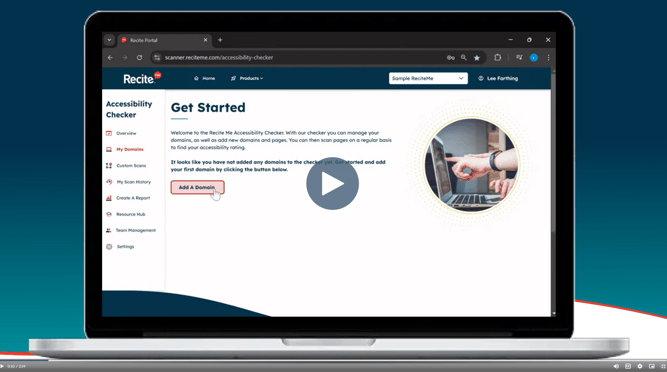
Access concise 1–2 minute video explainers covering key features of the platform - all in one place, so you can quickly learn how to get the most out of Checker.
You can access the video library via the link below:
https://knowledge.reciteme.com/knowledge/checker-knowledge-base